Aucun message portant le libellé polyline. Afficher tous les messages

mardi 2 août 2016

Turbocad - A command is not working properly - Think about Place on Workplane

La version en FRANÇAIS de ce tutoriel est disponible ici

A command does not work or work partially ? Think to place the objects concerned on the same plane !


Sometimes a command does not work or works only partially and you say "I run this command correctly, but I do not get the desired result. What's wrong ?". Often, the objects you're using to run this command are not on the current Workplane for differents reasons

**This tip may be apply on others CAD softwares. You have to find the corresponding commands names


To be sure your objects (lines, arcs, circle, plolylines, ect...) are on the current Workplane follow these steps :


  • Select the objects that will be used to run the command you want to use
  • Go to the Modify menu and select the Place on Workplane command  (Shift + Alt + W)


In this way, all the objects selected will be place on the current Workplane and in most cases the command will working correctly

** If the problem persist, go see this post on the Turbocad forum http://forums.turbocad.com/index.php/topic,9797.0.html


An illustration of objects place on differents Workplanes


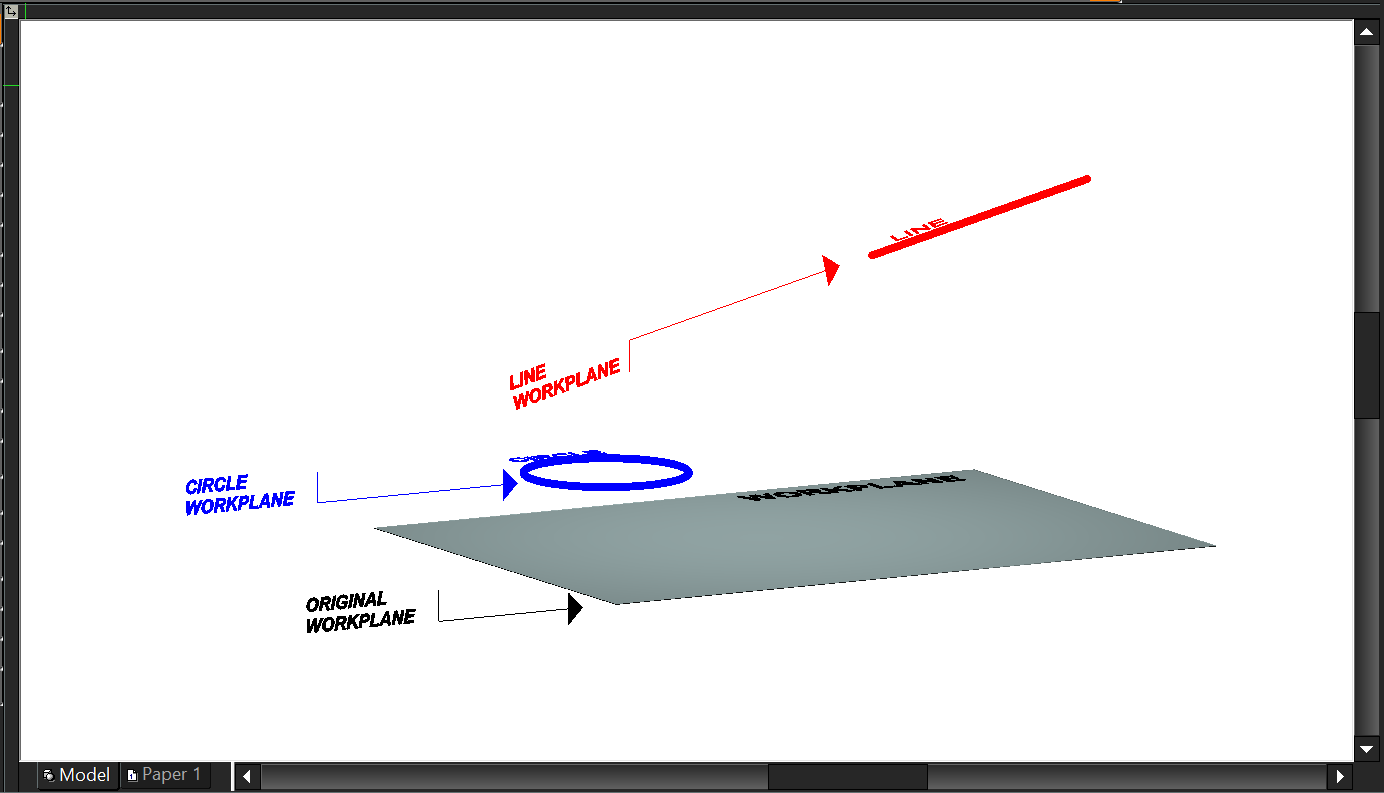
On the figure below, the light blue rectangle represent the original workplane. The circle and the line seems to be placed on this horizontal surface but if we look them from a side view...


we can see they're placed on two others horizontals Workplane. Here I have greatly exaggerated the situation, but if the objects that you need to execute a command are not placed exactly on the current WorkPlane This is sufficient for the command does not run or runs only partially


A perspective view of the same objects on different WorkPlane


Why the objects don't be created on the good Workplane ?


  • It may be cause by a software error
  • This may be a mishandling on your part especially in 3D mode or have constantly changing Workplane and that we forget to verify the exact positioning of our Workplane before creating an object
  • It may be cause when you a Mirror copy or when you change the rotation angle of an object


There are probably other reasons that are unknown to me now. If you know of others, I would appreciate that you share them !

This post is a work in progress one. So come back to it often or add to your favorites :-)

Need more help about Turbocad, see my archives page !

Jean Bernier
Service de plans JB
Affilié Turbocad affiliate

Turbocad, l'Alternative. Suivez ce lien pour en faire l'expérience
Turbocad, the valid Alternative. Follow this link to experience it !​

dimanche 31 juillet 2016

Turbocad outil Trim - Couper multiples lignes en une seule action

An English version of this post is available in following this link

Comment couper de multiples lignes entre deux objets (lignes, courbes, polyligne, ect ...) dans Turbocad


J'ai rencontré ce problème en dessinant un agrandissement de chalet pour un client. J'étais bien sûr capable de couper une ligne à la fois avec l'outil Trim, mais je ne pouvais pas couper de nombreuses lignes à la fois comme changer la longueur de plusieurs lignes en une seule action avec l'outil multi Shrink / Extend ligne

Vous verrez dans ce tutoriel comment obtenir le résultat souhaité ! J'utilise l'édition Platinum de Turbocad mais vous pouvez aussi utilisez ce tutoriel avec les éditions Deluxe et Pro

Alors je me suis tourné vers la communauté d'aide de Turbocad pour  m'aider à résoudre ce problème et je ne l'ai pas regretté :-). Comme vous pouvez le voir dans ce post, plusieurs membres ont attaqué la tâche avec courtoisie et efficacité. Je vous invite à vous y joindre. Beaucoup de trucs et astuces sont disponibles et bien sûr de l'aide spécifique à vos besoins

Commençons à résoudre ce problème !

Tout d'abord aller dans le menu Modify et sélectionnez l'outil Trim. Si vous ne pouvez pas le voir, voir ci-dessous le chemin pour y accéder


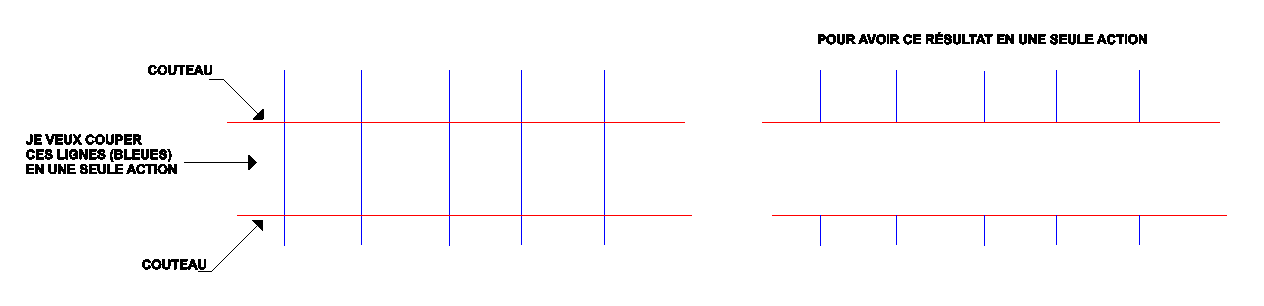
Deuxième sélectionner en faisant glisser en bas à droite jusqu'en haut à gauche, les deux objets serviront de couteaux. Ensuite, cliquez sur le bouton Finish (Drapeau) ou faites un clic droit et sélectionnez Finish (Drapeau) ou la combinaison de touches Alt + F


Maintenant sélectionnez les lignes à couper


Voyez le résultat !


Trucs

Si ça ne fonctionne pas ou que partiellement, pensez à placer les lignes "Couteaux" et les lignes qui doivent être coupées sur le même plan de travail (Workplane). Pour ce faire, sélectionnez les deux types de lignes et allez dans le menu Modify et sélectionnez Place on Workplane (Shift+Alt+W)

Si vous ne pouvez pas voir l'outil Trim, allez dans le menu Tools, sélectionnez Customize, la boîte Customize s'ouvre. Allez à l'onglet Commands, défilez vers le bas la zone Commands jusqu'à ce que vous voyez l'outil Trim, sélectionnez-le et faites-le glisser dans une barre d'outils de l'interface utilisateur de Turbocad. Maintenant, vous pouvez exécuter ce tutoriel!


Vous voulez plus de tutoriels de Turbocad, cliquez ici


Jean Bernier
Service de plans JB
Affilié Turbocad

Turbocad, l'Alternative. Suivez ce lien pour en faire l'expérience
Turbocad, the valid Alternative. Follow this link to experience it !