Aucun message portant le libellé trim. Afficher tous les messages

dimanche 31 juillet 2016

Turbocad outil Trim - Couper multiples lignes en une seule action

An English version of this post is available in following this link

Comment couper de multiples lignes entre deux objets (lignes, courbes, polyligne, ect ...) dans Turbocad


J'ai rencontré ce problème en dessinant un agrandissement de chalet pour un client. J'étais bien sûr capable de couper une ligne à la fois avec l'outil Trim, mais je ne pouvais pas couper de nombreuses lignes à la fois comme changer la longueur de plusieurs lignes en une seule action avec l'outil multi Shrink / Extend ligne
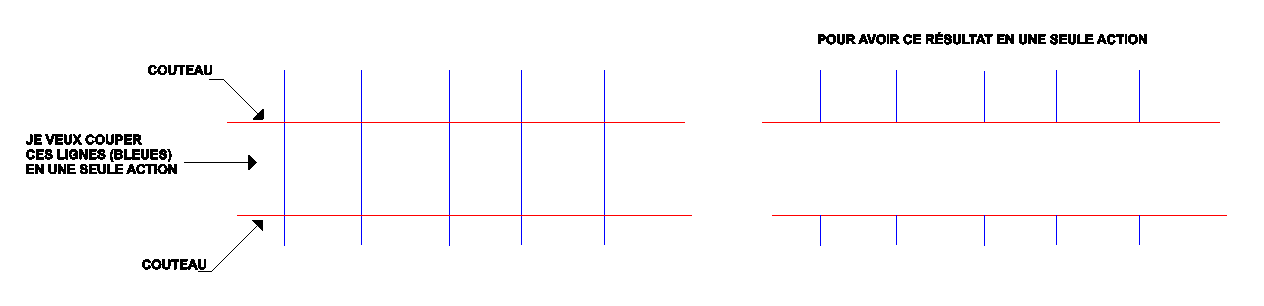
Vous verrez dans ce tutoriel comment obtenir le résultat souhaité ! J'utilise l'édition Platinum de Turbocad mais vous pouvez aussi utilisez ce tutoriel avec les éditions Deluxe et Pro

Alors je me suis tourné vers la communauté d'aide de Turbocad pour  m'aider à résoudre ce problème et je ne l'ai pas regretté :-). Comme vous pouvez le voir dans ce post, plusieurs membres ont attaqué la tâche avec courtoisie et efficacité. Je vous invite à vous y joindre. Beaucoup de trucs et astuces sont disponibles et bien sûr de l'aide spécifique à vos besoins

Commençons à résoudre ce problème !

Tout d'abord aller dans le menu Modify et sélectionnez l'outil Trim. Si vous ne pouvez pas le voir, voir ci-dessous le chemin pour y accéder


Deuxième sélectionner en faisant glisser en bas à droite jusqu'en haut à gauche, les deux objets serviront de couteaux. Ensuite, cliquez sur le bouton Finish (Drapeau) ou faites un clic droit et sélectionnez Finish (Drapeau) ou la combinaison de touches Alt + F


Maintenant sélectionnez les lignes à couper


Voyez le résultat !


Trucs

Si ça ne fonctionne pas ou que partiellement, pensez à placer les lignes "Couteaux" et les lignes qui doivent être coupées sur le même plan de travail (Workplane). Pour ce faire, sélectionnez les deux types de lignes et allez dans le menu Modify et sélectionnez Place on Workplane (Shift+Alt+W)

Si vous ne pouvez pas voir l'outil Trim, allez dans le menu Tools, sélectionnez Customize, la boîte Customize s'ouvre. Allez à l'onglet Commands, défilez vers le bas la zone Commands jusqu'à ce que vous voyez l'outil Trim, sélectionnez-le et faites-le glisser dans une barre d'outils de l'interface utilisateur de Turbocad. Maintenant, vous pouvez exécuter ce tutoriel!


Vous voulez plus de tutoriels de Turbocad, cliquez ici


Jean Bernier
Service de plans JB
Affilié Turbocad

Turbocad, l'Alternative. Suivez ce lien pour en faire l'expérience
Turbocad, the valid Alternative. Follow this link to experience it !

mardi 26 juillet 2016

Turbocad Trim tool - Cut multiples lines in one action

How to cut multiples lines between two objetcs (line, curve, polyline, ect...) in Turbocad

Une version en français de cet article est disponible ICI

I met this problem by drawing a chalet expansion for a client. I was of course able to cut a line at a time with the Trim tool, but I could not cut off many lines at a time like changing the length of several lines in one action with the tool Multi Shrink / Extend line


You will see in this tutorial how to achieve the desired result! I'm using Turbocad Platinum edition but you use this tutorial for the Deluxe and Pro edition too

So I turned to the Turbocad aid community to help me solve this problem and I have not regretted :-). As you can see in this post, several members attacked the task efficiently and courteously. I invit you to join it. A lot of tips and tricks are available and of course spefific help from the community

Let's get start to solve the problem !


First go to the Modify menu and select the Trim tool. If you can't see it, see the tip below


Second select by draging (buttom right to up left) the two objects will serve as Cutters (knifes). Then click on the Finish (Flag) button or right click ans select Finish or the key combination Alt+F


Now select by dragging the lines to be Trim


And see the Result !


Tips


If it dosesn't work or just partially, think to place the Cutters lines and lines to be Trim on the same Workplane. To do this, select the both types of lines and go to the Modify menu ans select Place on the WorkPlane

If you can't see the Trim tool in Modify menu, go to the Tools menu, select Customize the Customize box open. Go to Commands tab, scroll down in the Commands box til to see the Trim tool, select it and drag it any toolbar on the Turbocad user interface. Now you can execute this tutorial !

Wants more Turbocad tutorials, go to this adress

Thanks


Thank you to the members of the Turbocad forum. A special thanks to Torfinn who give us this tip

Have a great day

Jean Bernier
Service de plans JB
Turbocad, l'Alternative. Suivez ce lien pour en faire l'expérience
Turbocad, the valid Alternative. Follow this link to experience it !