Aucun message portant le libellé place. Afficher tous les messages

mercredi 12 avril 2017

Turbocad -- The intermediates Copy tools

Turbocad - The intermediates Copy tools


You have always been hear at school to not copy your neighbor .... well, the computer tells you everything you do once do not remake it, Copy it!


This is the second of the three tutorials concerning the Basics, Intermediates and advanced Copy tools

You can see the first one (basics copy tools) by clicking this link
You can see the third one (advanced copy tools) by clicking this link


What's you gonna see in this Intermediates Copy tools tutorial ?

Intermediate Copy tools
  • Vector Copy
  • Mirror Copy
  • Copy in Place

Vector Copy tool

It is useful when you want to copy an object at a precise distance and angle Relative to the selected object. Modify -- copy -- Vector

To use it, first, to help you, draw a line with the lenght and angle you want to place the copy. You can draw this line anywhere on the drawing area. Select the object you want to copy, go to Modify menu -- Copy -- Vector


Turbocad ask you to define the Start point of the vector. Click the end of the line corresponding to the start of the way you want to copy the object already selected. Now Turbocad ask you to define the End point of the vector (the line you drew), click on the other end of the line.


Voilà the object is now copied at the place you want


Mirror tool


The Mirror tool is useful when you want to copy an object at equal distance relative to another. You can access this tool from Modify -- copy -- Mirror. This is possible with an intermediate object (or 2 arbitrary points) between them or you can use two points anywhere in the drawings area. The original object can be retained or discarded

Turbocad ask you to define the start point of the object (or one of the 2 arbitrary points) will serve as the intermediate. Click the first point on the object. Now Turbocad ask you to define the other point of the object (or the second arbitrary points), click on the other end on the object.


Copy in Place tool

This tool make a copy of the object(s) selected at the same place of the original object(s). You can access this tool from Modify -- copy -- Copy in Place. Once the command is executed, it is the copied object(s) that are selected and can be moved anywhere on the drawing area


Note: You have these Copy Tools on the Turbocad Deluxe, Turbocad Professional, Turbocad Pro Platinum and Designer versions. These 4 versions are available in free trial version and fully functional for 30 days :-) Click on the links in blue to learn more

Want more Turbocad tutorials, click here

Jean
Affiliate Turbocad
Turbocad, the real Alternative

lundi 3 avril 2017

Turbocad - How to use basics and advanced Copy tools

Turbocad - The basics Copy tools


You have always been hear at school to not copy your neighbor .... well, the computer tells you everything you do once do not remake it, Copy it!


This is the First of the three tutorials concerning the Basics, Intermediates and advanced Copy tools

You can see the second one (intermediates copy tools) by clicking this link
You can see the third one (advanced copy tools) by clicking this link

What's you gonna see in this Copy tools tutorial ?

Basics Copy tools

  • Make Copy 
  • Rubber Stamp 

Basics Copy tools

Make Copy command

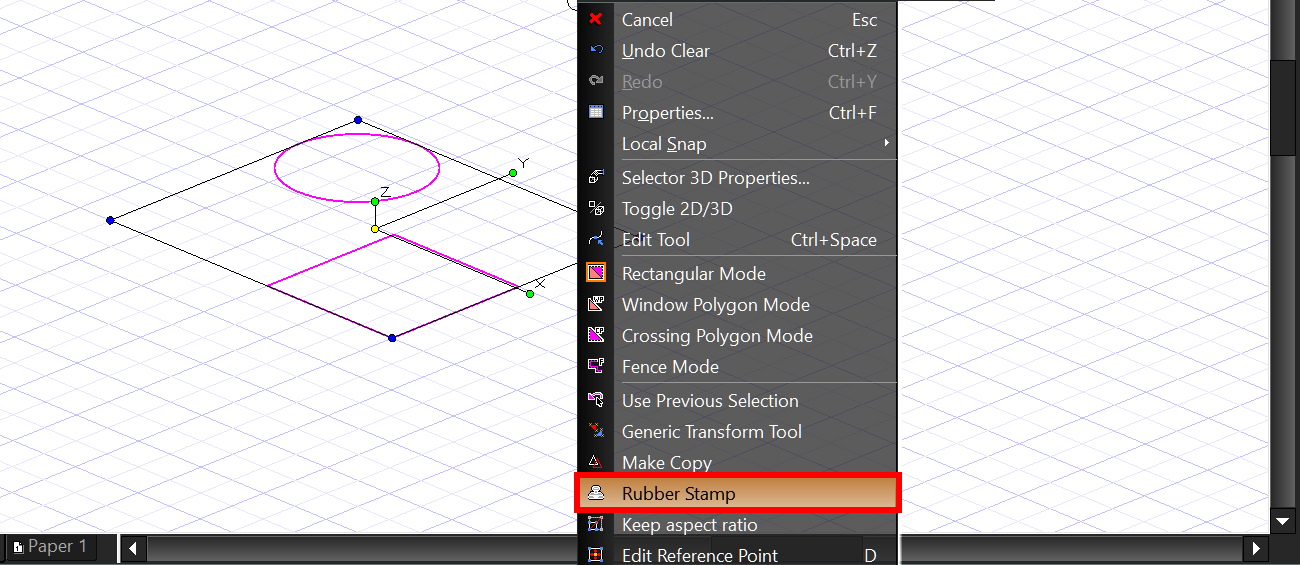
Select the object(s) you want to made a copy from. Right click on the selected object(s) and select the Make Copy command. The Make Copy does a copy of the object(s) selected just above it or them. To relocate the copy, place the cursor (arrows with a + sign) over the yellow dot and place object(s) where you want. After that, if the command is still active, another copy is automaticaly made from the last object copied. After you made all the copies you want, desactivate the Make Copy command by Right clicking and and turn off the command by clicking on it. If you select another tool to create an object, the Make Copy command will be automaticaly turned off


Rubber Stamp command

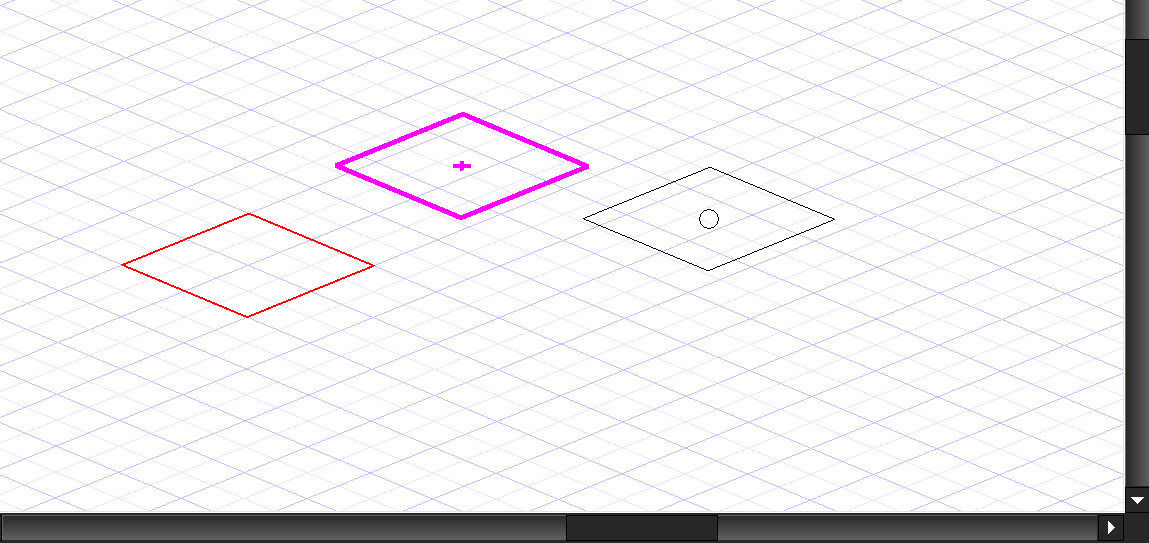
Select the object(s) you want to made a copy from. Right click on the selected object(s) and select the Rubber Stamp command. A square's reprensenting the object(s) selected appears with a new cursor (arrows and stamp), click on the origin dot (yellow) then place object(s) where you want. You can make as many copies as you want while the command remains active. To desativate the Rubber Stamp command, press the escape key once


Note: You these Copy Tools on the Turbocad Deluxe, Turbocad Professional, Turbocad Pro Platinum and Designer versions. These 4 versions are available in free trial version and fully functional for 30 days :-) Click on the links in blue to learn more

Want more Turbocad tutorials, click here

Jean
Affiliate Turbocad
Turbocad, the real Alternative

mercredi 3 août 2016

TurboCAD - Une commande ne fonctionne pas correctement - Placez vos objets sur le plan de travail courant


An ENGLISH version of this post is available at this adress

Une commande Turbocad ne fonctionne pas ou fonctionne partiellement? Pensez à placer les objets concernés sur le même plan de travail (Workplane) !


Parfois, une commande ne fonctionne pas ou ne fonctionne que partiellement et vous vous demandez "j'utilise cette commande correctement, mais je n'obtiens pas le résultat souhaité. Quel est le problème?". Souvent, les objets que vous utilisez pour exécuter cette commande ne sont pas sur le plan de travail actuel (Workplane) pour différentes raisons

** Cette astuce peut être appliquer sur d'autres logiciels de DAO (CAD). Vous devez trouver les noms de commandes correspondants


Pour être sûr que vos objets (lignes, arcs, cercles, polylignes, etc ...) sont sur le plan de travail actuel (Workplane), procédez comme suit:


  • Sélectionnez les objets qui seront utilisés pour exécuter la commande que vous souhaitez utiliser
  • Allez dans le menu Modify et sélectionnez la Place on Workplane (Shift + Alt + W)
De cette façon, tous les objets sélectionnés seront placer sur le plan de travail actuel (Workplane) et dans la plupart des cas, la commande va fonctionner correctement :-)

** Si le problème persiste, allez voir ce post sur le forum Turbocad


Une illustration des objets placés sur différents plans de travail (Workplanes)

Sur la figure ci-dessous (vue du dessus), le rectangle bleu clair représente le plan de travail initial. Le cercle et la ligne semblent être placé sur cette surface horizontale, mais si nous les regardons sur une vue de côté ...


nous pouvons voir qu'ils sont placés sur deux autres plans de travail horizontals (WorkPlane). Ici, j'ai beaucoup exagéré la situation, mais si les objets dont vous avez besoin pour exécuter une commande ne sont pas placés exactement sur le WorkPlane courant, ceci est suffisant pour que la commande ne fonctionne pas ou ne fonctionne que partiellement


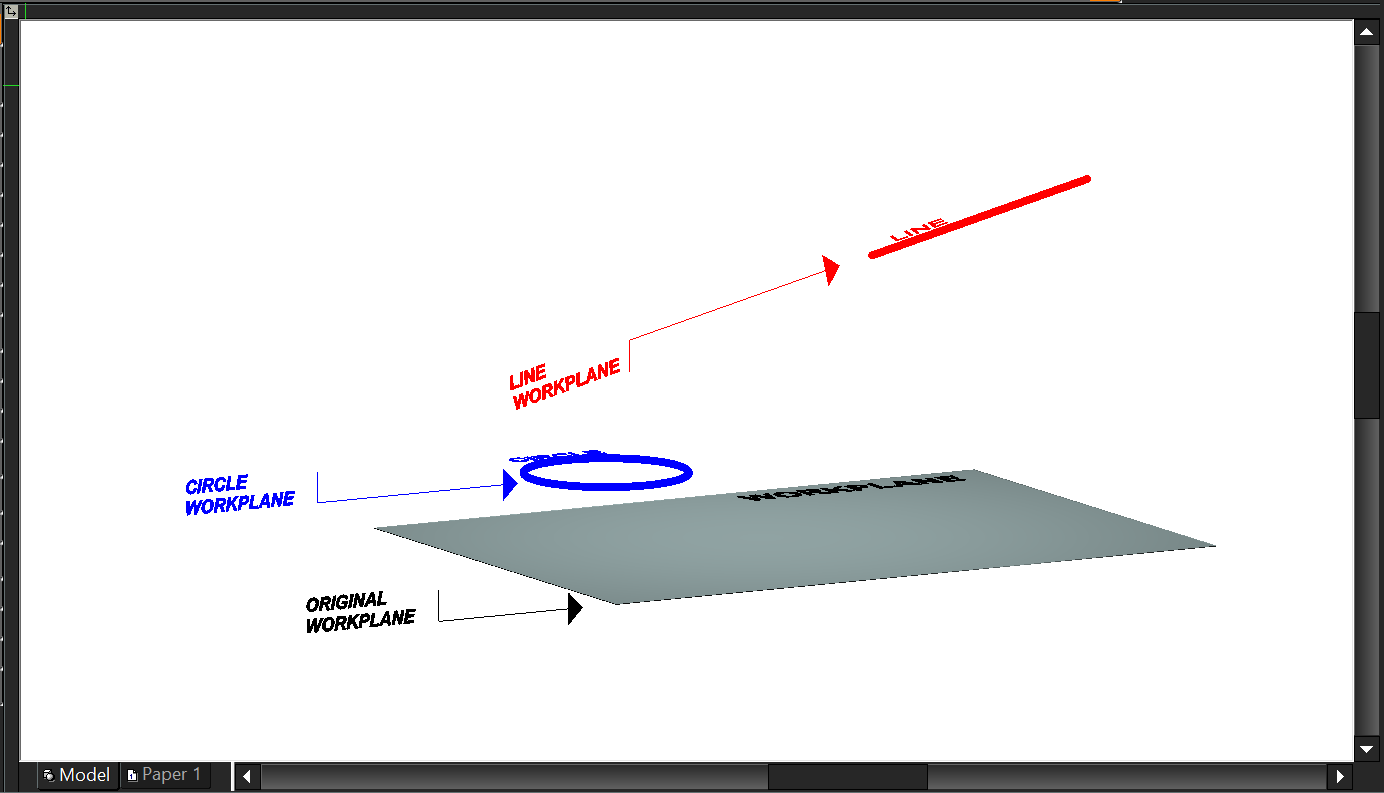
Une vue en perspective des mêmes objets sur leurs différents plan de travail


Pourquoi les objets ne sont pas créés sur le bon plan de travail?


  • Il peut être causé par une erreur du logiciel
  • Cela peut être une mauvaise manipulation de votre part surtout en mode 3D ou ont change constamment de Plan de travail et que l'on oublie de vérifier le positionnement exact de notre plan de construction avant de créer un objet
  • Cela peut être causé lorsque vous effectuez une copie miroir ou lorsque vous changez l'angle de rotation d'un objet

Il y a probablement d'autres raisons qui me sont inconnues pour le moment. Si vous en connaissez d'autres, je vous serais reconnaissant de les partagez !

Cet article en est un travail en cours. Alors revenez souvent ou ajouter cette page à vos favoris :-)

Besoin de plus d'aide sur Turbocad, visitez ma page d'archives!


Jean Bernier
Service de plans JB
Affilié Turbocad affiliate

Turbocad, l'Alternative. Suivez ce lien pour en faire l'expérience
Turbocad, the valid Alternative. Follow this link to experience it !​

mardi 2 août 2016

Turbocad - A command is not working properly - Think about Place on Workplane

La version en FRANÇAIS de ce tutoriel est disponible ici

A command does not work or work partially ? Think to place the objects concerned on the same plane !


Sometimes a command does not work or works only partially and you say "I run this command correctly, but I do not get the desired result. What's wrong ?". Often, the objects you're using to run this command are not on the current Workplane for differents reasons

**This tip may be apply on others CAD softwares. You have to find the corresponding commands names


To be sure your objects (lines, arcs, circle, plolylines, ect...) are on the current Workplane follow these steps :


  • Select the objects that will be used to run the command you want to use
  • Go to the Modify menu and select the Place on Workplane command  (Shift + Alt + W)


In this way, all the objects selected will be place on the current Workplane and in most cases the command will working correctly

** If the problem persist, go see this post on the Turbocad forum http://forums.turbocad.com/index.php/topic,9797.0.html


An illustration of objects place on differents Workplanes


On the figure below, the light blue rectangle represent the original workplane. The circle and the line seems to be placed on this horizontal surface but if we look them from a side view...


we can see they're placed on two others horizontals Workplane. Here I have greatly exaggerated the situation, but if the objects that you need to execute a command are not placed exactly on the current WorkPlane This is sufficient for the command does not run or runs only partially


A perspective view of the same objects on different WorkPlane


Why the objects don't be created on the good Workplane ?


  • It may be cause by a software error
  • This may be a mishandling on your part especially in 3D mode or have constantly changing Workplane and that we forget to verify the exact positioning of our Workplane before creating an object
  • It may be cause when you a Mirror copy or when you change the rotation angle of an object


There are probably other reasons that are unknown to me now. If you know of others, I would appreciate that you share them !

This post is a work in progress one. So come back to it often or add to your favorites :-)

Need more help about Turbocad, see my archives page !

Jean Bernier
Service de plans JB
Affilié Turbocad affiliate

Turbocad, l'Alternative. Suivez ce lien pour en faire l'expérience
Turbocad, the valid Alternative. Follow this link to experience it !​