Aucun message portant le libellé alternative. Afficher tous les messages

dimanche 23 avril 2017

TurboCAD - Revolve tool - How to Create a Revolution of a 2D entity around an axis

TurboCAD, How to create a circular 3D modeling shape since a 2D shape and an Axis


Sometimes it is useful to create a circular object since an irregular shape like a mecanical part or a gallery pole. This tutorial will show how to create them. Let's begin !


Note : The Revolve tool is available with the Deluxe, Professionnal and PRO Platinum versions of Turbocad.  These 3 versions are available in free trial and fully functional versions for 30 days :-) Click on the links in blue to learn more

To follow this tutorial properly, please download my Turbocad file since this link an open it

Where to find the Revolve tool ? You can find in the 3D Modify tool bar (see image below)


When you select the Revolve tool, Turbocad ask you (bottom of the screen) to select a "2D Entity to Revolve". Select the Blue one. The object becomes highlight


At the bottom left of the screen, it will ask you to "Specify the first point of the Revolution Axis "Select one of the ends of the object". After Turbocad ask you "Specify the second point of the Revolution Axis". Select the other end point of the object. The 2 points you choose deterrmine the orientation of the axis on wich the 2D shape will make a revolution. The 3D shape appear. Congratulations you just did your first Revolved hape in 3D
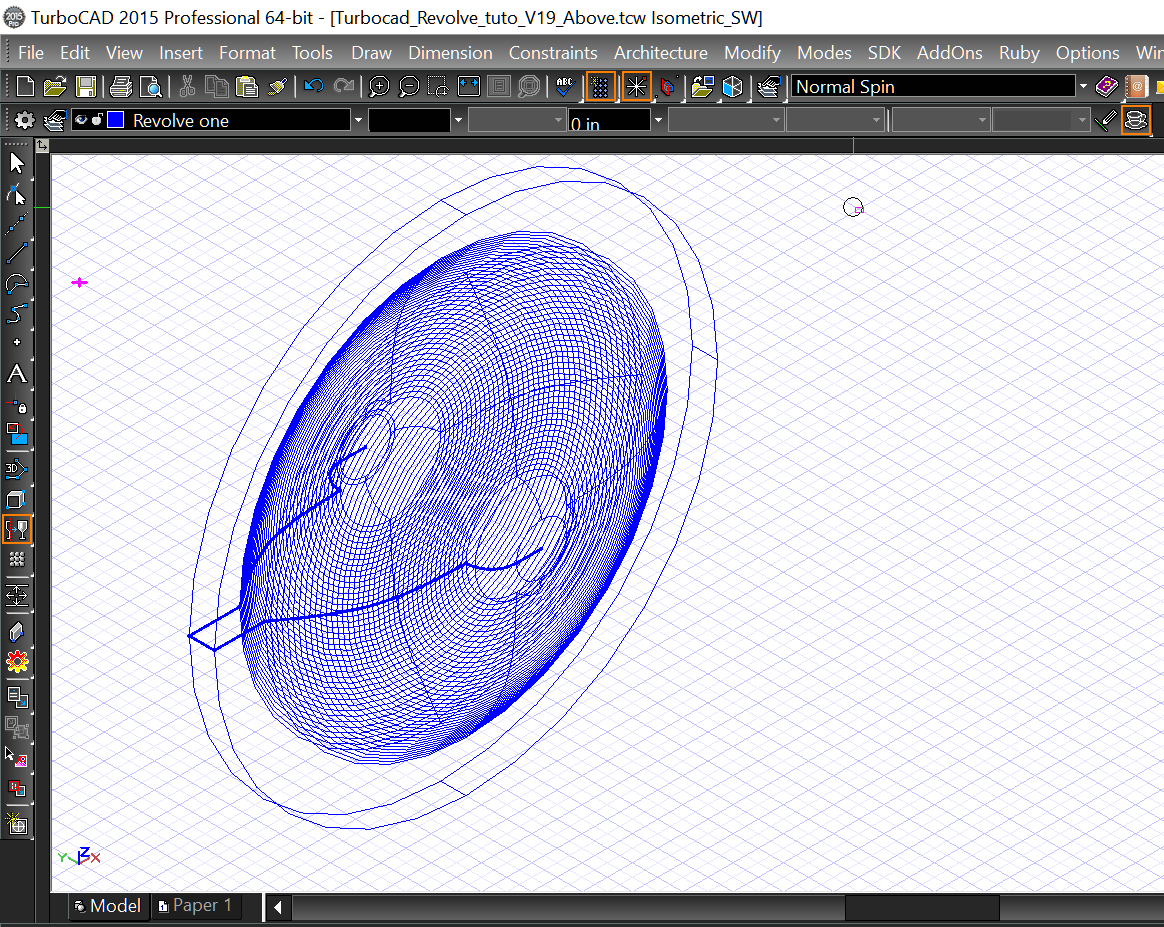

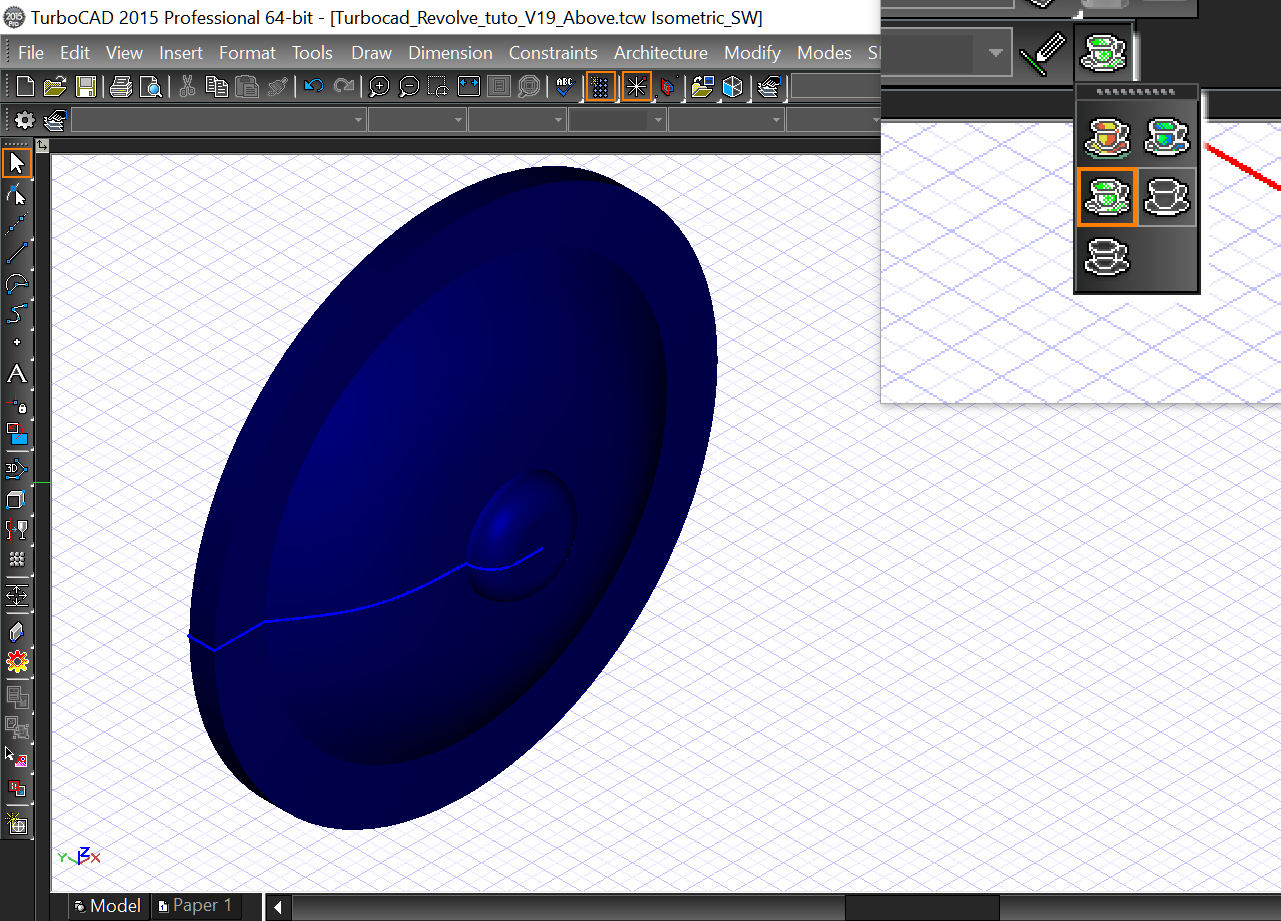
As you can see there's 2 objects, the 2D basic shape and the 3D one you can Edit, Copy ect...Now I'm sure you want to see the 3D object in rendering mode, just choose on of the rendering mode (Hidden lines, Quality or Advanced) in the Rendering modes tool bar


An Extra for this tutorial !


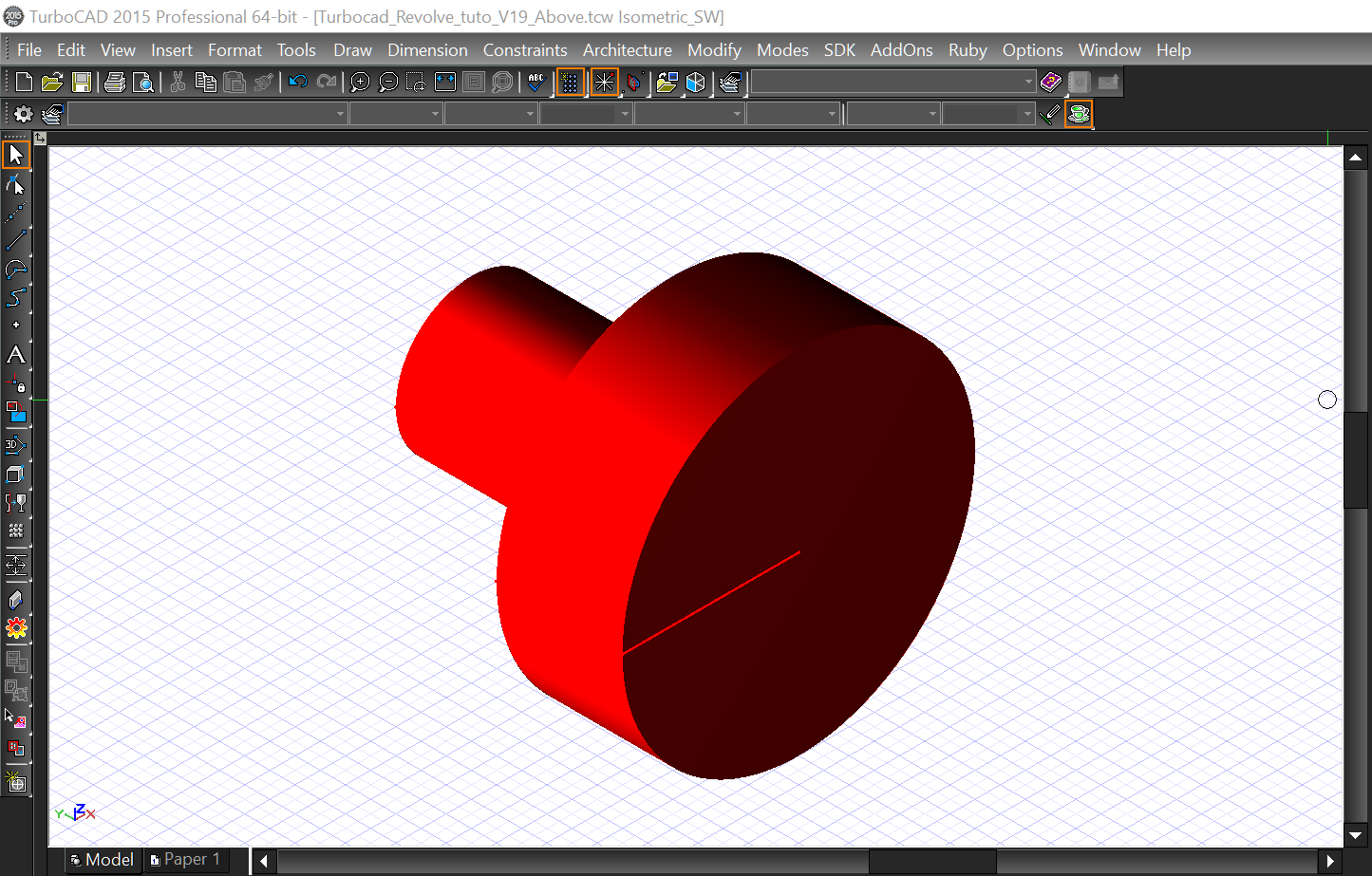
Now use the same manner to Revolve the other object and I'll show you something else will interested you, The Shell tool use to remove the interior of a Revolved 3D object made since a closed 2D polyline shape and just leaved a thickness around the object

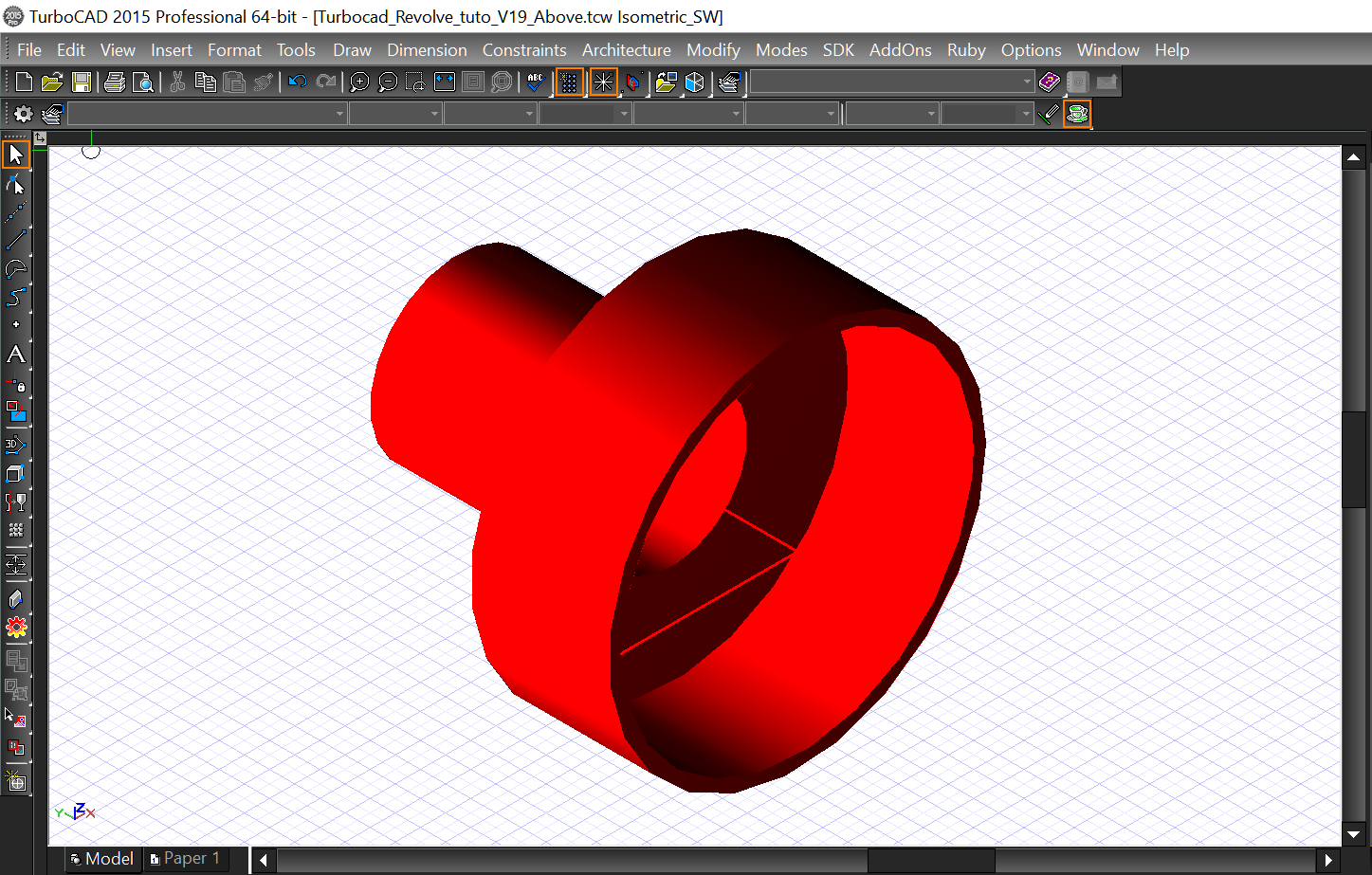
Select the Shell Solid tool from the drop down menu Modify -- Modify 3D object -- Facet Editing -- Shell Solid. At the bottom left of the Turbocad window, Place the cursor in the Thickness case and enter the value 0.5 in than press the Enter key. Select the object you just did. Turbocad ask you  to "Select a face to Omit or choose Finish from the local menu". Select the bigger round surface, right click and select the Finish command. Voilà the Shell Solid command had removed the interior of the object. Don't forget you can do it only with 3D revolved shape made with a CLOSED 2D shape.

Note : The Solid Shell tool is available with the  Professionnal and PRO Platinum versions of Turbocad.  These 2 versions are available in free trial and fully functional versions for 30 days :-) Click on the links in blue to learn more

Thanks to take your time to read this tutorial !

Want more Turbocad tutorials, click here

Jean
Turbocad affiliate. 

Turbocad, the real Alternative


samedi 30 juillet 2016

Turbocad - LTE UI - Command line - Work more efficiently

La version en  FRANÇAIS de ce tutoriel est diaponible à cette adresse

LTE user inteface allowing you to work even more efficiently and quickly

Update 2017-04-21 --- Click on this link for a complete LTE command list 

Most Turbocad users use its default environment, me first :-) which includes intuitive drop-down menus and icons toolbars that provide a visual use just as intuitive tools. But there is another effective method if not more then Autocad users knows very well and that is the Command Line


Turbocad offers the opportunity to work using the keyboard controls to significantly improve your effectiveness working with the mouse-keyboard duo. This method is achieved by using the LTE user interface provided in your software that included the command line. This tutorial will show you how to access and use this UI


Let's get setup the LTE user interface in Turbocad !


First, to change the user interface from the default to the LTE UI go to the Tools menu and select Customize


In the Customize Window, go to the Options tab then in "Workspace area" and select LTE Workspace in the Default style drop-down menu. Click on the Close button at the bottom of the window. Turbocad takes few moments to intitiate the LTE user interface


You're now in the LTE UI and you can see the Command line box at the bottom of Turbocad window. You are ready to use this powerfull tool !


Let's get start using the Command Line


We will use some basics commands like Line, Circle and rectangle but this UI is not limited to these commands you can use hundreds 2D/3D commands used in Autocad and some spefific to Turbocad

**For Autocad users, there's a more specific version of Turbocad for you.  This version is called Turbocad LTE Pro and it is designed specially to facilitate your transition to Turbocad. You can save your drawings directly in DWG file like others Turbocad version. You can learn more about at this adress

** This tutorial is a Work in progress one, please come visit regularly :-)

In this example we will draw a line 5 inches long with an angle of 30 degrees. First type in Command line box the letter "L" and press Enter. You can use metric system by writing mm (example) right after the new numeric value you entered or changing Space units. To do this go to Options menu --> Drawing setup --> Space units --> System --> Metric


The command line ask you to Define the Start point of the line. When you point the cursor in the drawing area it is asking the same thing


Define a position anywhere in the drawing area. Now two new boxes appear in the drawing area. It is asking to define the End point of the line. We will use the two boxes to define precisly the lenght and angle we want. By default the Lenght box is highlight and waiting you enter a value. Enter 5 in this case. Press the Tab key to enter the angle value 30 then press the Space bar or Enter key. Congratulations you just draw your first object in this new environnement :-)


You can observe then Turbocad asking you for a next End point from the one you just drew. It's because you're still in Line command until you exit it by pressing the Escape key. In this way you can draw multiples Lines always from the last End point like a Polyline without being

**When you are using the Command line interface, look in this one and you can choose differents options depending on what the tool you are using. I will writing on this subject later

Second example we will draw a rectangle with the same procedure. First write REC and hit Space bar or Enter key. Turbocad asking you to Define the first corner of the box. Do it by clicking anywhere in the drawing area

Now Turbocad asking to define the second corner of the box. Two boxes appear in drawing area, Size A(lenght) and Size B (height) to define the sizes of the box. In this case we will use 6 as the lenght and 3 as the height. By default the Size A box is highlight, so enter 6 as the lenght value, press the Tab key to enter the Size B box and enter 3 as the height value then press Space bar or Enter key to confirm the command. That's it, it's easy and fast like this and it's gonna be faster as and extent of your use !


**When you are using the Command line interface, look in this one and you can choose differents options depending on what the tool you are using. I will writing on this subject later

Third example, we will draw a circle with the same procedure. First write "C" and hit Space bar or Enter key. Turbocad asking you to Define the center point of the circle. Do it by clicking anywhere in the drawing area

Turbocad asking to Define point to specify radius of circle. In this case we will enter a value in the new box appear "Radius". Enter 3 as the Radius of the circle and hit the Space bar or the Enter key to confirm the command. That's another way to draw a circle in Turbocad. Instead of a numeric values, you can of course use the cursor to determine a free value.


**When you are using the Command line interface, look in this one and you can choose differents options depending on what the tool you are using. I will writing on this subject later

Others basic commands

I'm letting you try others commands among others :

PLINE to draw a polyline
ARC to draw an arc
ZOOM to increase or decrease the apparent sizes of objects

You want more for sure, see this web page !

Snap modes are accessible by right clicking in a free space on the drawing area and choose Local snap and select the desired mode


As mentionned above this tutorial will be improve in next weeks !


Have fun with LTE UI !

Wants more Turbocad tutorials, go to this adress

You want to learn more about versions of Turbocad, follow this linK

Jean Bernier
Turbocad user and affiliate


samedi 23 juillet 2016

Turbocad - Boutons (icones) flous ?


An ENGLISH version of this article is available at this adress

Voici comment résoudre le problème des icones flous sur Turbocad

 
Allez dans le menu Tools ensuite appuyez sur Workspace et finalement sur UI Theme


Changez le Theme "User Interface style" en cliquant sur celui désiré et fermez la fenêtre en appuyant sur le bouton Close au bas de la fenêtre

Maintenant allez dans le menu Tools ensuite sur Workspace et finalement sur Customize


Changez la dimension des boutons en déplaçant le curseur situé au centre de la fenêtre sous la rubrique Other. Fermes la fenêtre avec le bouton Close


Si le problème est résolu, vous avez le choix entre garder le thème actuel ou revenir à votre thème préféré en suivant la procédure ci dessus

Si le problème persiste, sauvegardez votre travail, fermez Turbocad et redémarrez le

C'est tout, normalement tout devrait revenir dans l'ordre

Si vous voulez en savoir plus sur les produits Turbocad, suivez ce lien

Bonne journée !


Vous voulez plus de tutoriels de Turbocad, cliquez ici

Turbocad, l'Alternative valable

Expérimentez le gratuitement dans sa pleine version pendant 1 mois


Jean Bernier

Affilié IMSI Design